NetLogger to QSL.now
If you log nets with NetLogger, you already have everything a QSL card needs. The one file to bring us is the log file NetLogger exports with the contacts you logged, and this page shows where it comes from. The menu paths below are from NetLogger 3.1.7, so if your copy is older or newer, the names may differ a little.
The file you need
- What it is. An ADIF file, the standard log file that every logging program can export. Its name ends in .adi or .adif.
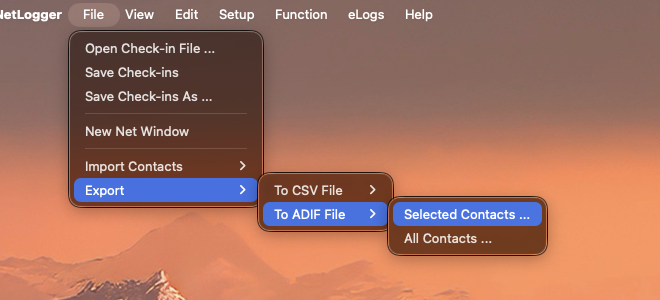
- Where it comes from. In NetLogger, open File > Export > To ADIF File and choose Selected Contacts ... or All Contacts ... The steps are below, with pictures.
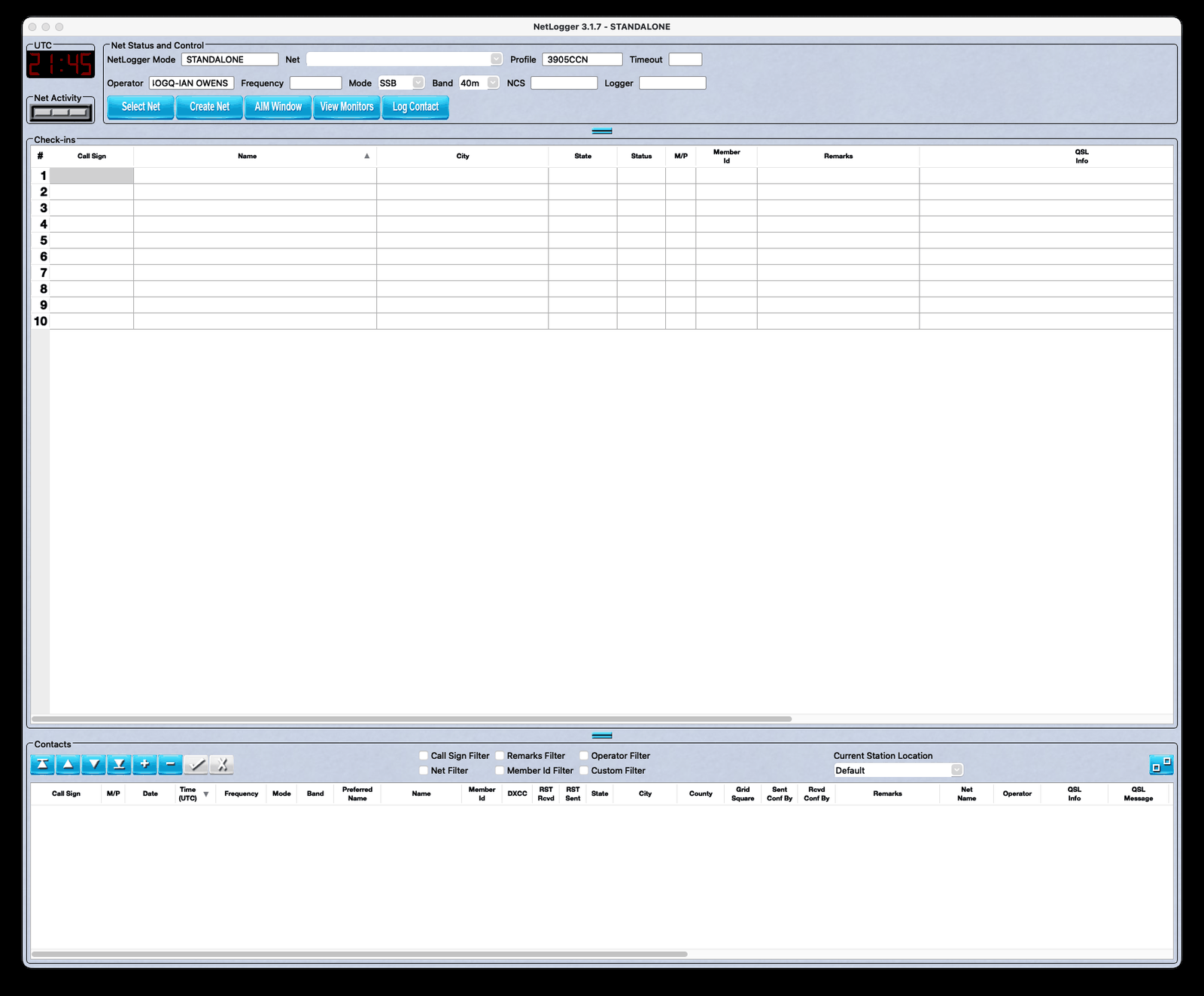
- What is in it. The contacts in your Contacts table, the table at the bottom of NetLogger's main window that fills in only when you click Log Contact. A net's check-in list, the list of stations that told net control (the station running the net) they were listening, is not in the file and is not your log. QSL.now makes a card for each logged contact and never for a check-in.
Upload that file at /start and QSL.now does the rest.
Export your logged contacts to an ADIF file
- In the Contacts table, click the first contact, then shift-click the last to select a range. Command-click on a Mac, or Control-click on Windows and Linux, adds single rows.
- Open File > Export > To ADIF File and choose Selected Contacts ... (or All Contacts ... for your whole log).
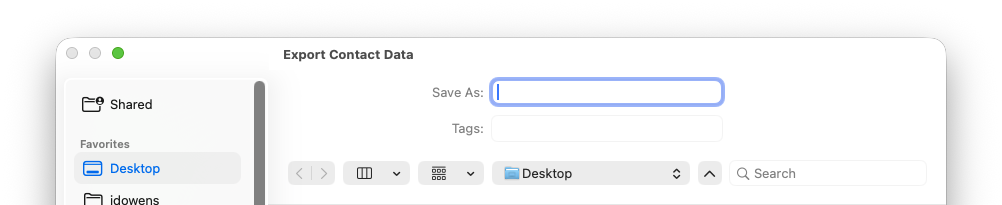
- Name the file and click Save.
Upload
Go to /start, drop the file in, and review the list. Contacts you uploaded before are skipped and counted, so exporting All Contacts every time is fine.
What QSL.now reads from a NetLogger export
NetLogger writes standard ADIF plus a few tags of its own. We read both.
| On the card | From the export |
|---|---|
| The other station's call | CALL |
| Date and time in UTC | QSO_DATE and TIME_ON |
| Band, frequency, and mode | BAND, FREQ, MODE, and SUBMODE |
| Signal reports | RST_SENT and RST_RCVD |
| Name | NAME, then Preferred Name (APP_NETLOGGER_PREFERRED_NAME) |
| QTH, state, county, and grid | QTH, STATE, CNTY, and GRIDSQUARE |
| Your callsign | STATION_CALLSIGN from your Station Location, then OPERATOR |
| QSL message | QSLMSG (QSL_COMMENT from older exports also works) |
| Member number | APP_NETLOGGER_CLUBMEMBERID, or a number between # marks in COMMENT |
| PSE, THX, or NCN | Sent Conf By and Rcvd Conf By (APP_NETLOGGER_CONF_SENT, APP_NETLOGGER_CONF_RCVD) |
PSE, THX, and NCN. Every card carries one of three marks, and your Conf By columns decide which. An X in Sent Conf By, which NetLogger defines as "does not want or require a card", prints NCN (no card needed). Otherwise Rcvd Conf By decides: empty prints PSE QSL (please send me a card), and any letter, such as C for a paper card, E for eQSL, or L for LoTW, prints THX QSL (your card is already here). If that column is empty, the standard tags decide: QSL_RCVD Y or V, LOTW_QSL_RCVD Y, or EQSL_QSL_RCVD Y prints THX.
Email addresses. NetLogger does not export them, so for a NetLogger upload we look the addresses up on QRZ for you.
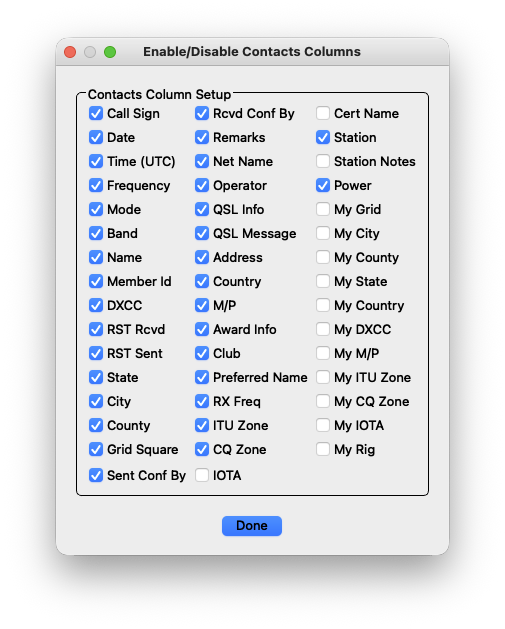
Turn on the Sent Conf By and Rcvd Conf By columns
The fields are exported either way, but you need the columns on screen to fill them in.
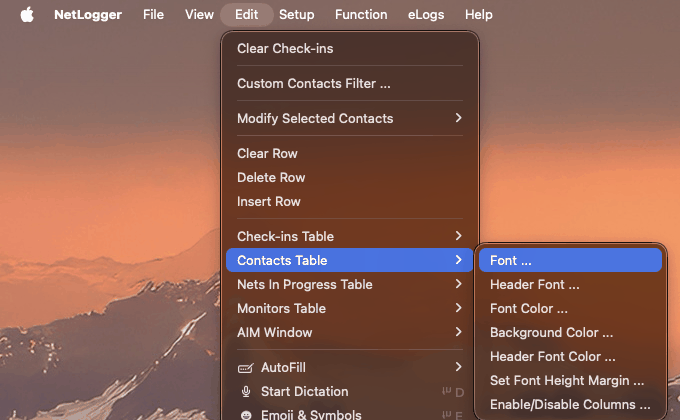
- Open Edit > Contacts Table > Enable/Disable Columns ...
- Tick Sent Conf By and Rcvd Conf By.
- Click Done.
Set a default QSL message
Setup > Default QSL Message ... opens a box for the text you want on every card. Then tick Setup > Use Default QSL Message so NetLogger copies it into each contact when you click Log Contact.
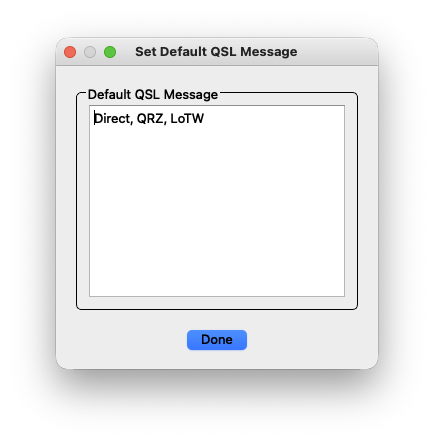
The message can contain variables that NetLogger fills in when you log the contact: $NET$, $CALL$, $BAND$, $FREQ$, $MODE$, $DATE$, $TIME$, $SENT$, $RCVD$, $STATE$, $OPERATOR$, $MYCALL$, and $MP$, among others. Write $+MP$ with a plus sign and NetLogger adds a trailing space only when the value is not empty. The full list is in NetLogger under Help > Contents, on the page called Default QSL Message Variables. The substitution happens inside NetLogger: QSL.now prints exactly what arrives in QSLMSG, so an unexpanded variable shows on the card as typed.
Station locations
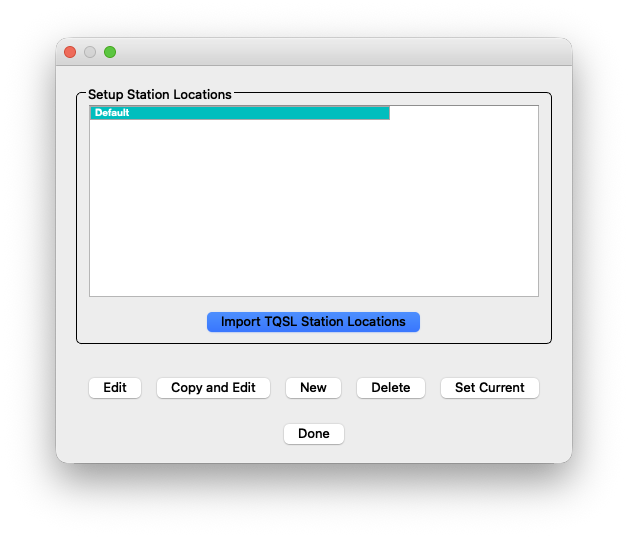
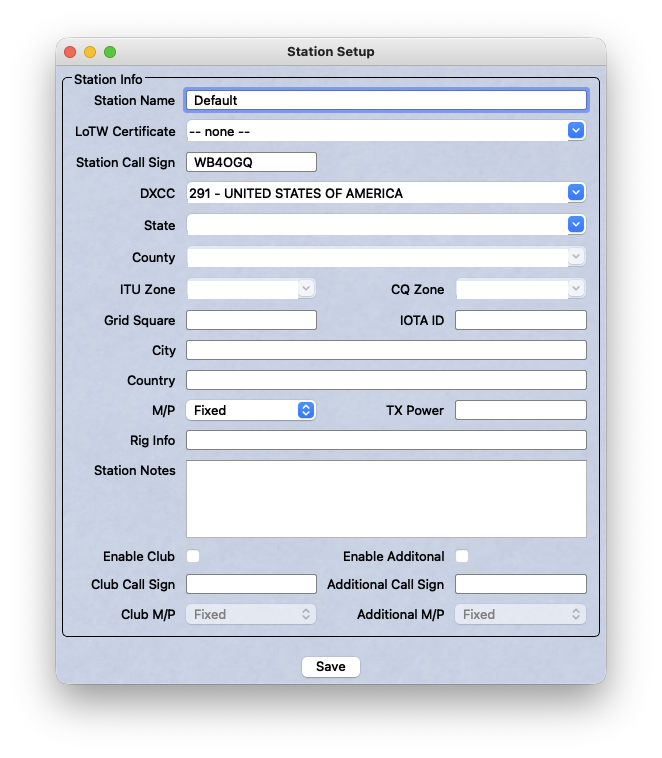
Setup > Station Locations holds your own details: station callsign, state, county, grid square, rig, and power. The Station Call Sign there is exported as STATION_CALLSIGN, the callsign we print as yours. Set the current location before a portable or club session. For contacts logged earlier, Edit > Modify Selected Contacts > Set Station Info from Current Station rewrites them, so use it with care.
If your times look wrong
NetLogger and some other loggers write four-digit times such as 2047 instead of 204700. That is normal ADIF, QSL.now reads it correctly, and the card shows 2047Z. If a time really is off, fix it in the Contacts table and export again.